Zero Touch Enrolment for Android Devices
Zero Touch Enrollment allows you to automatically enrol Android devices into mambo EMM without manual setup on each device. Devices are configured with a token from your Zero Touch profile during the initial setup.
Steps to Enrol a Device
- Ensure that your team has a Zero Touch Customer ID and that you have the necessary permissions in mambo EMM.
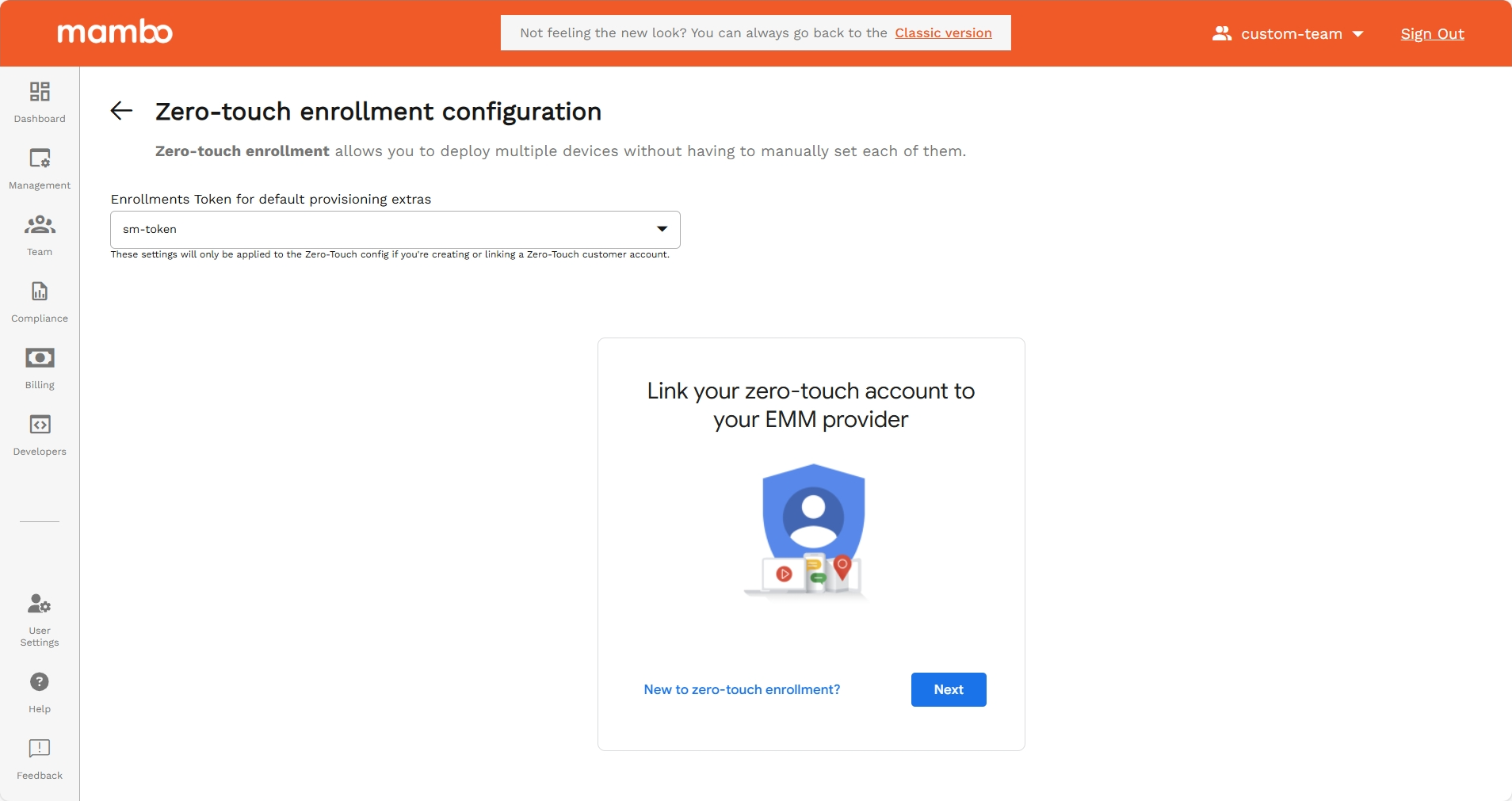
- Navigate to the Zero Touch Enrolments page in the mambo EMM console.
- If no Zero Touch profile exists for your team:
- Click Create to generate a new profile.
- Or click Link Existing to attach an existing Zero Touch profile to your team.
- Once a Zero Touch profile is available:
- Select a token from the dropdown list. Tokens represent your enrolment credentials.
- The device can enrol using either the token directly or a QR code generated for the token.
- Devices must be:
- Fresh out of the box, or
- Factory reset before enrolment.
- During the initial setup wizard on the device:
- Connect to a Wi-Fi network.
- When prompted at the Google Sign-in screen, follow instructions for Zero Touch enrolment using the provided token or QR code.
- The device will automatically configure:
- Enterprise policies
- Pre-installed applications
- Managed settings from mambo EMM
Notes
- Ensure that users have write permissions for Zero Touch enrollment tokens if you intend to create or link profiles.
- The Zero Touch interface may take a few moments to load in the console after selecting a token.
What's Next?
- 🔑 Learn how to Enroll Multiple Devices via QR Code
- 📱 Learn how to Set Up Device Policies for Enrolled Devices
- 🌐 Learn how to Assign Applications via Application Components