Lock a Device
The Lock action allows users to remotely lock a device from the console. This is useful when a device is lost, unattended, or needs to be temporarily restricted from use.
🔒 Locking a device is similar to the device’s screen locking when the timeout expires.
What happens when you lock a device?
When the Lock command is sent:
- The device screen is immediately locked (if the device is online)
- The user must unlock the device using their PIN, pattern, or password
- In a Work Profile environment:
- Normally, only the work profile is locked
- Exception: On organization-owned devices running Android 8, 9, or 10, the entire device will be locked
This prevents unauthorized access while keeping the device enrolled and managed.
How to lock a device
- Log in to the mambo EMM console
- Navigate to Management > Devices
- Find the device you want to lock
- Click the Actions (⋯) menu for the device
- Select Lock
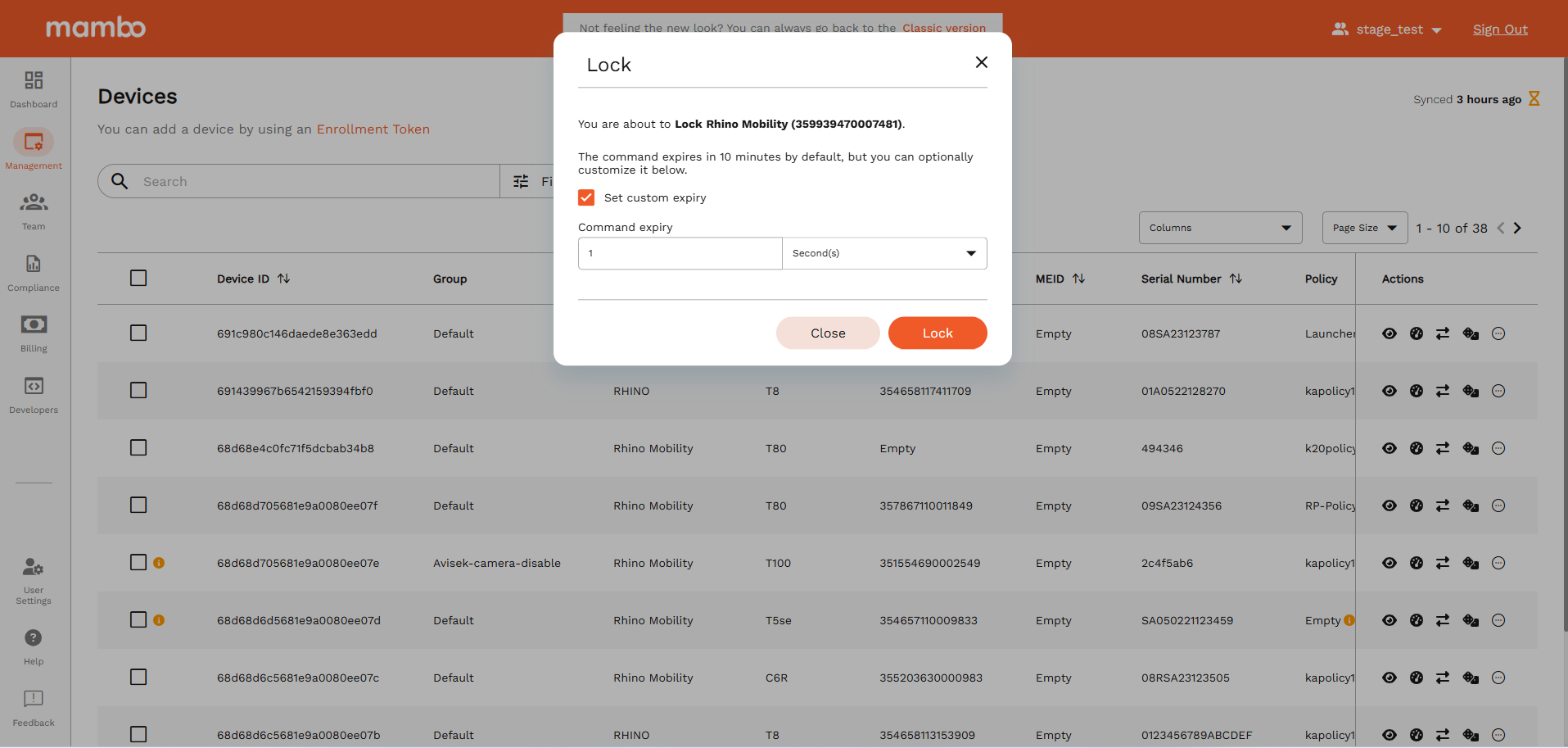
A confirmation popup will appear.
Configure Lock Command Expiry (Optional)
By default, the lock command expires after 10 minutes if the device is offline.
You can manually change this before sending the command.
- Enable Set custom expiry
- Enter a value (for example:
1) - Select a unit from the dropdown:
- Seconds
- Minutes
- Hours
- Click Lock to send the command
If the device does not receive the command before the expiry time, the request is automatically cancelled.
Requirements
To use the Lock feature, you must:
✅ Have device lock permissions enabled in your role
✅ Have view device permissions
✅ The device must be enrolled in mambo EMM
✅ The device should be connected to the internet
What’s Next?
- Learn how to Reset a device password
- Learn how to Wipe / Delete a device